Compliance frameworks
The Compliance area puts every framework your organisation answers to on one screen, then lets you open any single control to see what still stands between it and coverage.
A framework is a published set of requirements you measure yourself against, such as DORA, GDPR or ISO 22301. Each framework breaks into controls. You link policies, procedures, risks and evidence (the proof a control works) to those controls, and Aegis reads only those links. One rule decides the headline number: a control counts as covered when at least one linked evidence item is approved and still inside its valid-until date. A control with only a policy, a procedure or a risk linked is partial, not covered.
Who uses it
- Viewer reads the overview, every control and the DORA and EU AI Act pages, and can export. The AI buttons are not shown to a Viewer.
- Contributor also sees the AI buttons and can configure the DORA profile, but cannot change a control. The screenshots here were taken as a Contributor.
- Manager and Admin can change controls: applicability, parameters, requirements and AI proposals.
- DORA and the EU AI Act are pay-per-framework. Without that framework's licence, its page shows a short "not available" notice instead.
What's on this screen
Open Compliance in the left menu to reach /compliance.
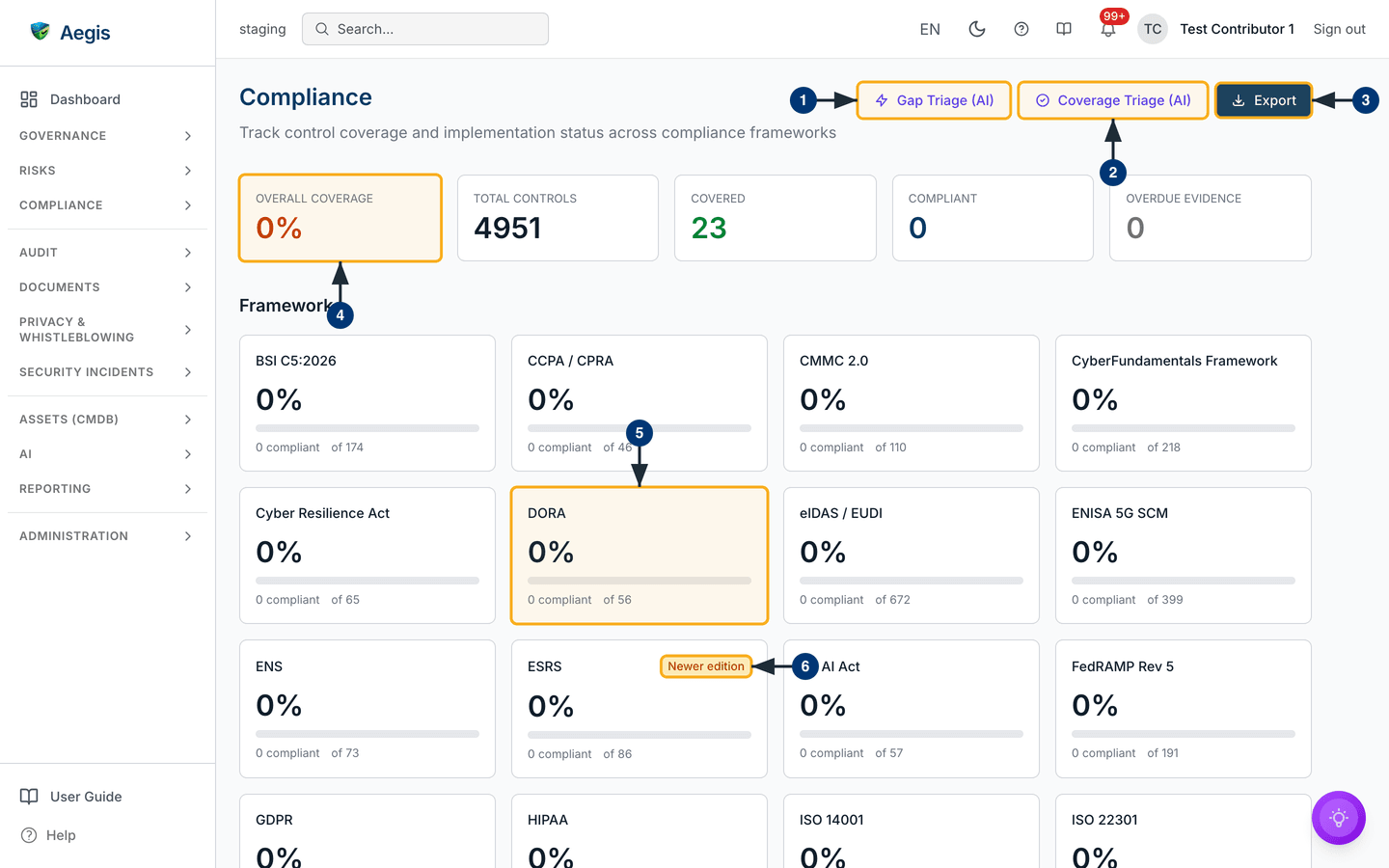
The header reads Compliance above the line "Track control coverage
and implementation status across compliance frameworks". Three buttons sit on
the right: Gap Triage (AI), Coverage Triage (AI) and
the dark Export button.
Below the header are five figures: Overall Coverage,
Total Controls, Covered, Compliant and
Overdue Evidence. They count only frameworks that are both enabled
and applicable. In the capture, 23 of 4,951 controls are covered, which rounds
down to 0%, and none is yet Compliant. Coverage shows
green from 80%, yellow from 60% and orange below.
Under Frameworks is an alphabetical grid of cards, four to a row.
Each gives the framework name, its percentage, a progress bar and a line such as
"0 compliant of 56". The ESRS card carries a yellow
Newer edition badge. A framework your organisation profile marks as
not applicable stays on the grid with a dashed border, a
Not applicable to your organization label and — in
place of a percentage.
Below the captured area come Control Requirements (the filterable
controls table), Saved AI insights and
Action items from AI.
Working from the overview
-
Select
Gap Triage (AI). TheControl Gap Smart Triagewindow opens and waits forRun Gap Triage. It ranks open gaps into a 90-day sprint and a 12-month horizon. -
Select
Coverage Triage (AI). Its window looks at controls with nothing linked at all and suggests where to start. -
Select
Export. TheExport Compliance Datawindow asks for a format (JSON,CSV,PDF,OSCAL SSPorOSCAL AR) and a scope. Confirm, and the file downloads. -
Read
Overall Coverage: the share of controls with approved, current evidence.Compliant, by contrast, counts controls whose own status isCompliant. -
Select a card, for example
DORA. The card gains a highlighted border, the heading changes toFrameworks (click to clear filter), and the controls table below shows only DORA controls. Select the card again to clear the filter. -
Hover over the
Newer editionbadge on a card such asESRS. A tooltip names the edition that supersedes the one Aegis ships.
Opening a control
Scroll to Control Requirements, narrow the table with the search
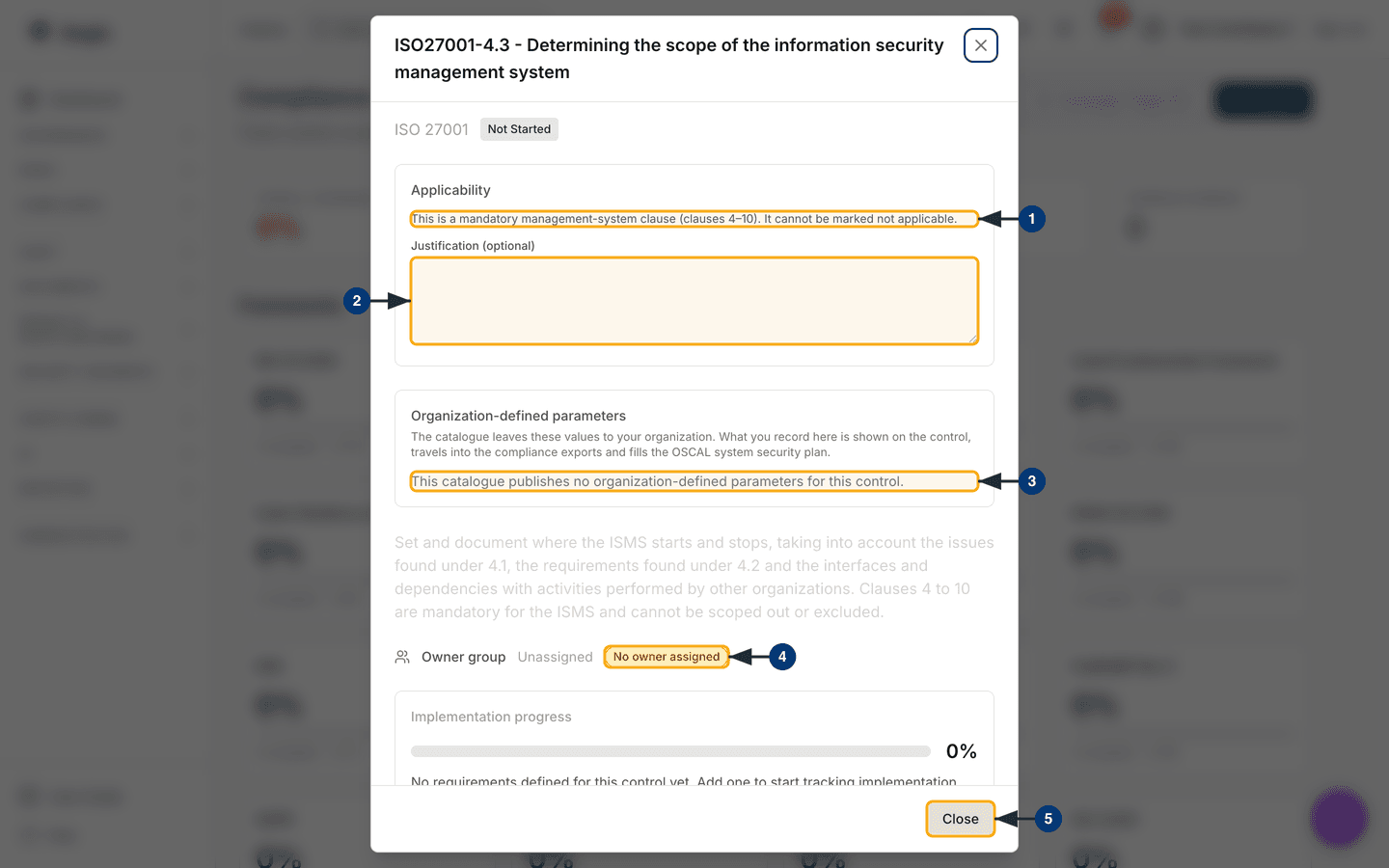
box and filters, then select a row. A window opens, headed with the control's
reference and title, here ISO27001-4.3, with the framework and a
status badge (Not Started) beneath.
-
Read the
Applicabilitypanel. For most controls a Manager can tick "This control is not applicable", which removes it from coverage. ISO management-system clauses 4 to 10 are mandatory, so here the panel says it "cannot be marked not applicable". -
Record your reasoning in
Justification (optional), then save. For a Contributor, as here, the field is read-only and has no save button. -
Check
Organization-defined parameters: values the framework leaves to you, which flow into exports. Here the catalogue defines none. -
Look at
Owner group. A yellowNo owner assignedbadge means nobody owns the control yet.Implementation progressbelow reads0%. -
Select
Close. The window closes and the table row reflects any saved change.
Moving a control forward
This needs Manager rights. Further
down the same window are a Maturity panel and the requirements,
each with a status of Not Started, In Progress or
Complete.
-
Aegis derives the control's status. All requirements
Completeand no open gap givesCompliant; allCompletewith a gap open givesNon-Compliant; anyIn ProgressgivesIn Progress. -
If the status changes and the control has equivalents elsewhere, a
Sync status across frameworkswindow asks whether to carry it across. You decide. -
AI Implementation Proposalin the footer drafts a plan. Nothing is applied until you apply it.
The DORA page
DORA (the EU's Digital Operational Resilience Act) has its own page at
/compliance/dora. A DORA Readiness bar under the
header shows 50%, with the note "Complete all four areas to achieve
full readiness". Four figure cards follow:
DORA Profile (Configured, with Edit),
ICT Assets 0, Third-Party Providers
0 and Resilience Tests 3. Below them,
navigation cards open each register, with its DORA article.
-
Select
AI Register Readiness. Aegis scores your Register of Information against DORA Article 28(3) and lists gaps and next steps. You decide which to act on. -
Select
Editon theDORA Profilecard. The profile window opens; only entity type is required. Save, and the readiness bar updates. With no profile yet, the button readsConfigure. -
Read
Saved AI insights. The capture holds one run saved on 15 July 2026 atMedium Confidence 57%. ItsLegacy recordbadge means it was saved before AI runs were recorded, so its origin cannot be verified.Show moreexpands the full text. -
Select
Create action itemto turn a recommendation into tracked work. It then appears underAction items from AIat the foot of the page. -
Use
Editto amend the insight's text, orDeleteto remove it.
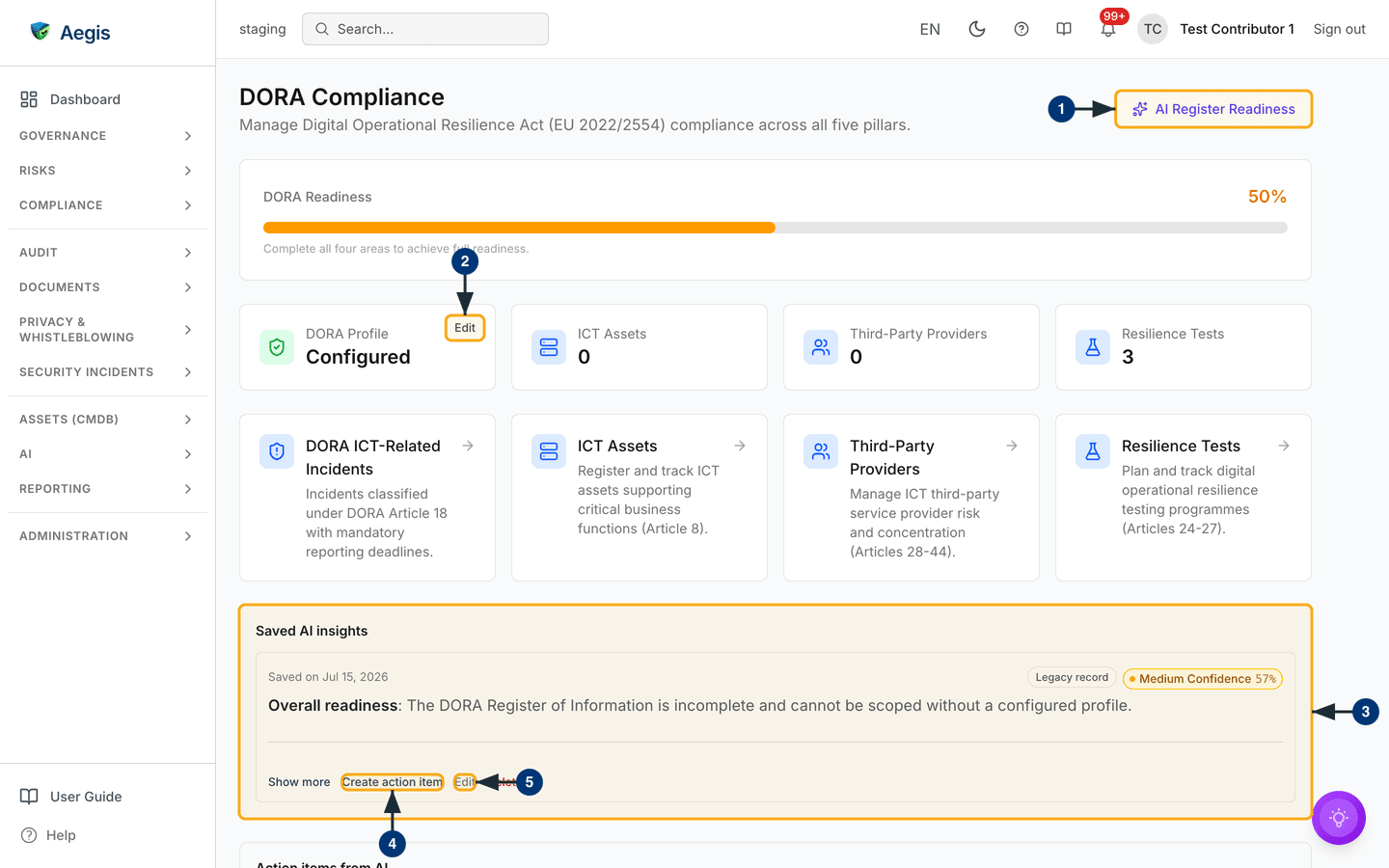
The insight in the capture says the register "cannot be scoped without a
configured profile", yet the profile card now reads Configured.
Saved insights record what was true when the run happened. Run
AI Register Readiness again after you change the register, and
delete insights that no longer apply.
The EU AI Act page
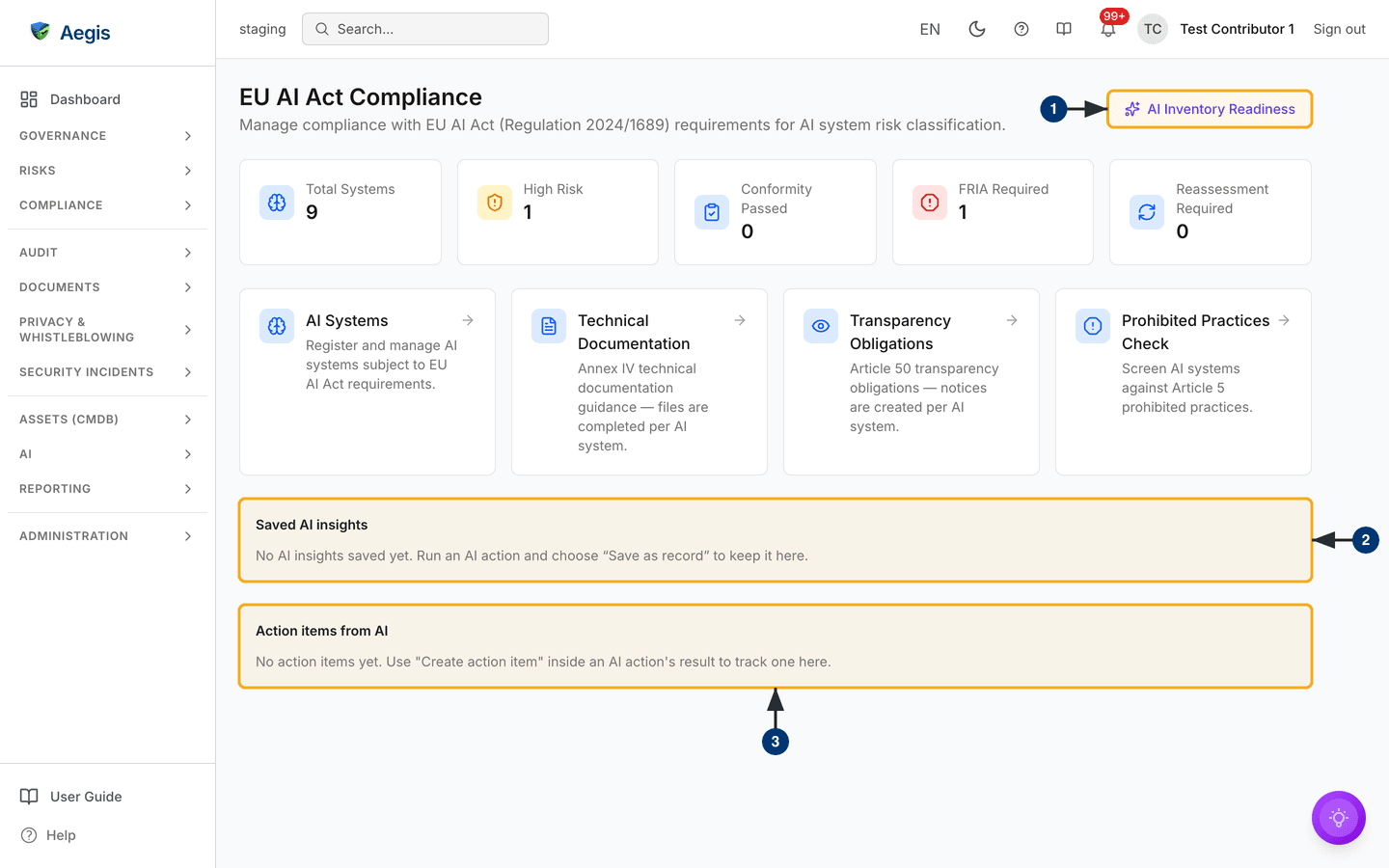
/compliance/eu-ai-act is the entry point for the EU AI Act
(Regulation 2024/1689). Five figures follow the header:
Total Systems 9, High Risk
1, Conformity Passed 0,
FRIA Required 1 (FRIA is a fundamental-rights impact
assessment) and Reassessment Required 0. Four
navigation cards lead to AI Systems,
Technical Documentation (Annex IV),
Transparency Obligations (Article 50) and
Prohibited Practices Check (Article 5).
-
Select
AI Inventory Readiness. Aegis scores your registered AI systems on prohibited practices, classification, FRIA, conformity and registration, tying each gap to an article. With an empty inventory it says so and does not invent systems, so register them first throughAI Systems. -
Read
Saved AI insights. Until you keep a run, it says "No AI insights saved yet. Run an AI action and choose 'Save as record' to keep it here." -
Read
Action items from AI. It stays empty until you useCreate action iteminside an AI result, exactly as on the DORA page.
The AI assist
All five AI actions in this area read what is recorded, write a briefing, and
leave the decision to a person. None changes a control, status or mapping by
itself. The gap triage ranking comes from fixed rules, not from AI. Keep any run
with Save as record. Every AI action is logged and uses your
organisation's AI credits.
Tips and limits
-
Coverage and status differ. A control can be covered and still read
Not Started, as the capture shows: 23 covered, 0 compliant. - Evidence counts towards coverage only once it is approved. An uploaded item still awaiting review leaves the control partial.
-
Overdue Evidencecan rise without anyone touching the system, as valid-until dates pass. Check it regularly. -
A dashed card showing
—means your organisation profile marks that framework as not applicable. Correct the sector or entity type in Settings. - You cannot create custom control sets; the shipped sets follow the published texts.
- The ISO 42001 pages are early. Where the control set has not been seeded, the page shows a placeholder instead of a control list, and the governance screens around it are still being built. SOC 2 is on the roadmap, not shipped, and does not appear in the grid.
- If framework data cannot be loaded, the page still opens, with an amber banner and an empty framework list. Refresh first. If the banner stays, contact support.
Where this connects
Close gaps by linking work from Policies, Procedures and Evidence, and by recording treatment in Risks. Control Mapping, CyFun Maturity and Mock Audit cover the related sub-pages. DORA Compliance and EU AI Act go deeper into the two framework pages. Audit readiness turns this picture into a checklist, and the work you take on is tracked in Action items.